Start teaching on Discentik
Become an instructor, create your first course, set a price, publish it and get paid.
Updated 14 October 2026
Anyone aged 18 or over with a personal Discentik account can create and sell courses.
Here's the whole journey, from your first draft to your first payout.
1. Become an instructor
Sign in and select Instructor in the top bar.
On Profile → Workspaces, select Become an instructor.
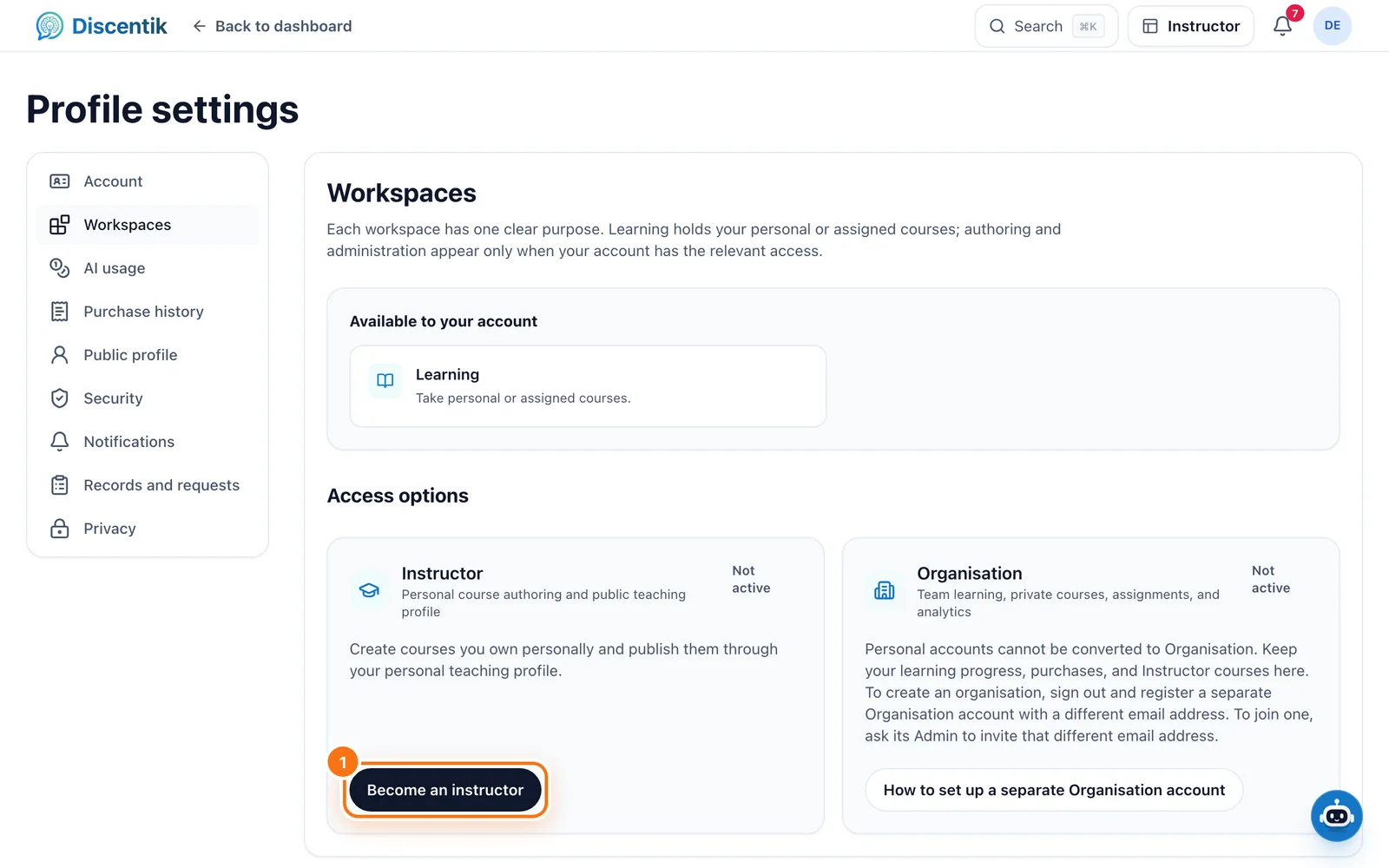
The Instructor workspace opens straight away. From now on, use the workspace menu in
the top bar to switch between Learning (taking courses) and Instructor
(creating them).
2. Create your course
In the Instructor workspace, open My Courses.
Select Create course.
Enter a Course name and select Create course. You can rename it later.
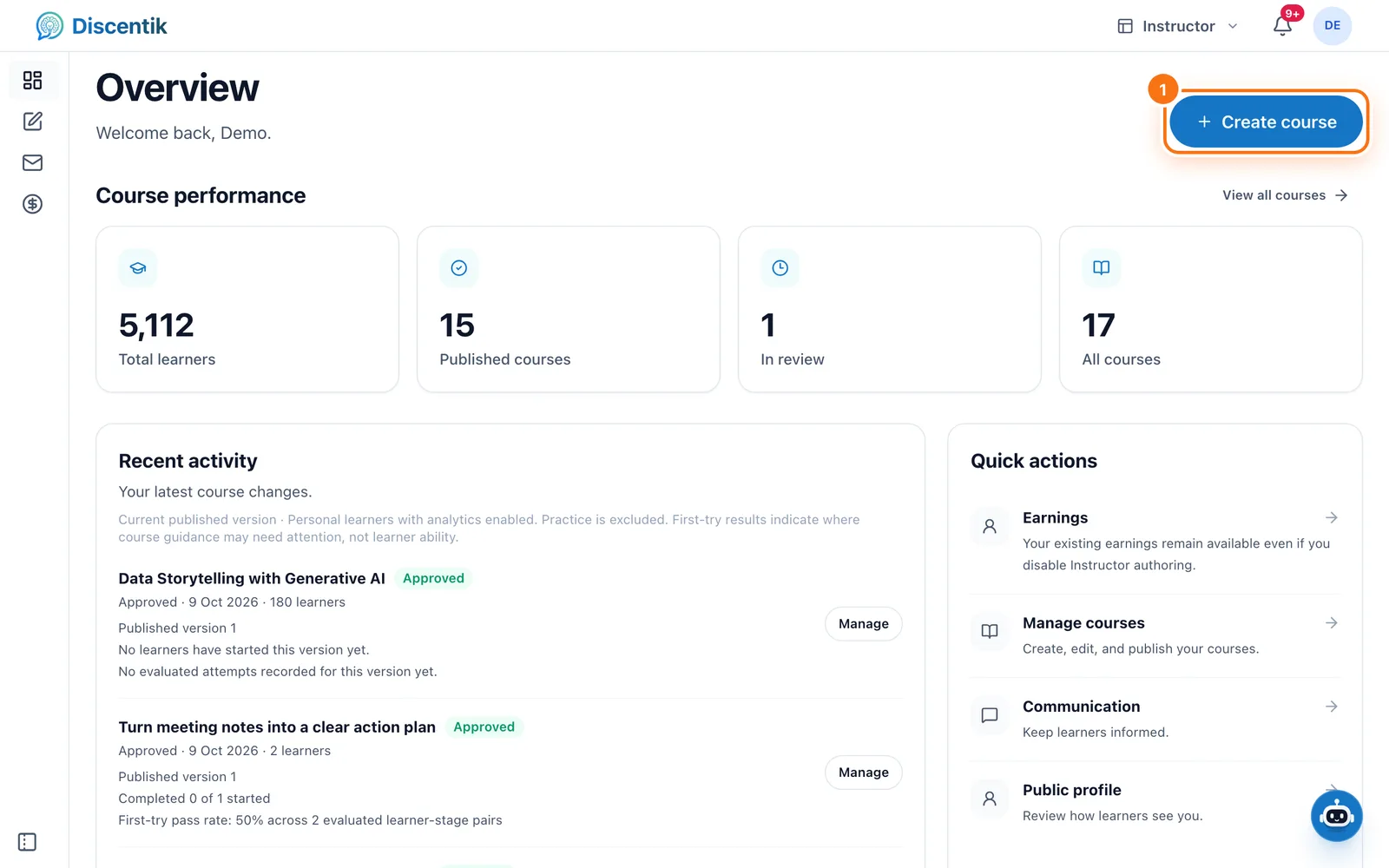
Your course opens in the editor. Add modules and stages from the Modules panel,
then fill in each stage. Save as you go. Saving never publishes anything.
Need ideas for activities? See Design course activities.
3. Set a price (or make it free)
Open your course's Settings → Commerce.
Choose Free course, or choose Paid course and enter a Price.
For a paid course, set the Included AI balance (EUR) learners get with it.
The allowed price range is shown under the price field.
4. Publish
Open Publishing in your course.
Select Submit public update.
Our team reviews every course before it goes live. You'll see
Update submitted. Awaiting approval. while it's being reviewed. Once approved,
learners can find it in Explore. See Publish your saved course changes.
5. Get paid
Before you can earn from a paid course:
Open Instructor → Earnings → Payout account.
Read and accept the Instructor licence.
Select Set up payout account and follow Stripe's steps to add your identity and
bank details.
Your sales, statements and payouts are all in Earnings.
See Manage course earnings and payouts.
Good to know
Building and editing your course by hand is free. AI-assisted authoring and testing
use your Instructor AI balance.You can update a published course at any time. Learners see changes after the next
approved review.If your account belongs to an organisation, you create courses in the Organisation
workspace instead, once an Admin gives you Content Author access.
Did this page help you?
Your response helps us improve this guide.